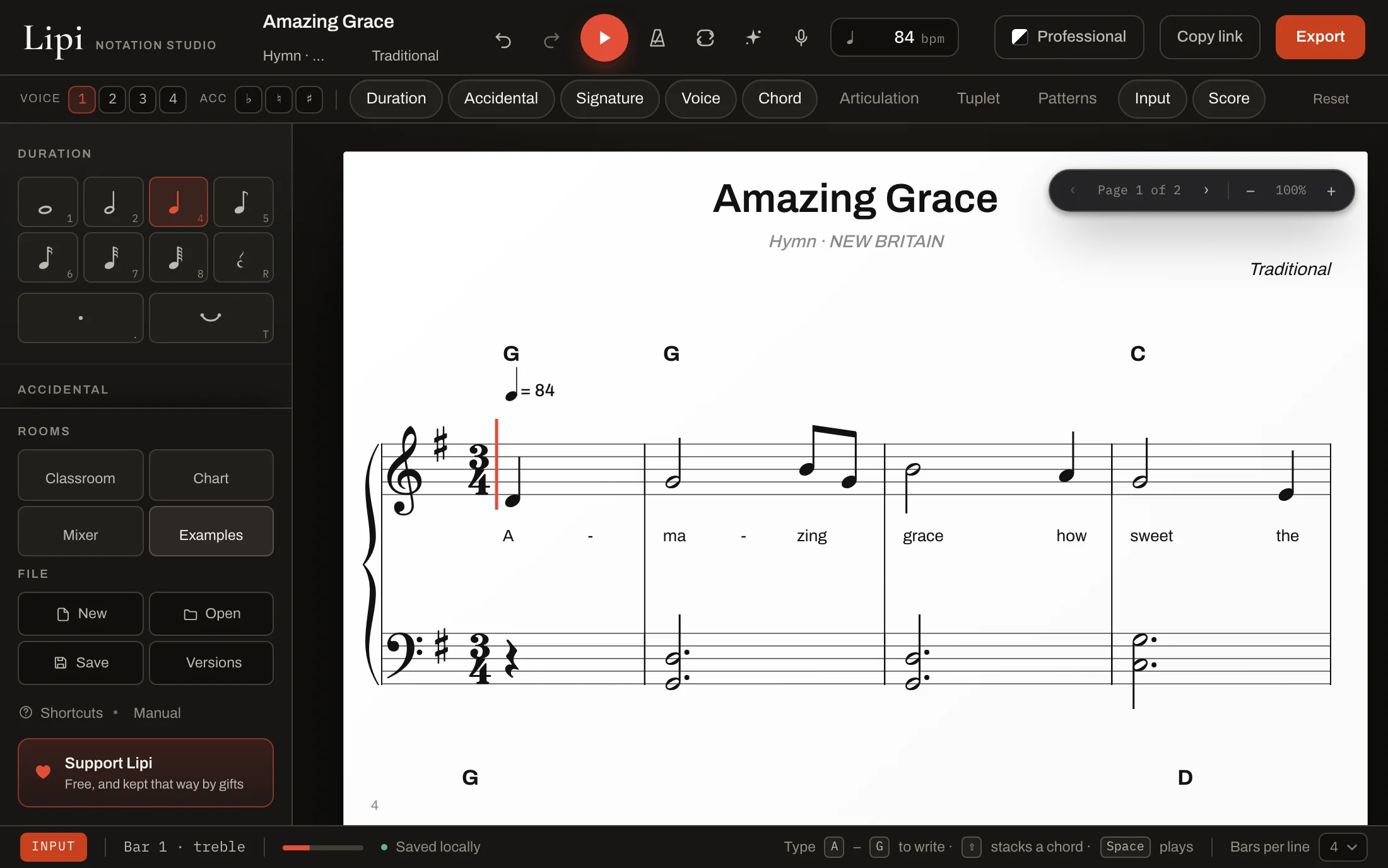
Professional notation in your browser. Type it, sing it or say it out loud; hear it on a real
grand piano; then export every bar on its own as a transparent PNG for your video — or as PDF,
MusicXML, MIDI, audio and a share link.
In Lipi this is a first-class export, not a workaround. Ask Lipi for your score and every bar
comes back as its own PNG with no background, sized for video, zipped in one download. Drop them
on the timeline as the lesson moves. What you engraved is what your viewer reads.
Reversed is the look built for this: white ink on nothing, so it sits on any footage.
PNG every bar, transparent, 3×
PDF print-ready, fonts embedded
MusicXML opens in MuseScore, Sibelius, Dorico
MIDI for your DAW
Audio the piano you heard
Link the whole score in a URL
bar-6.png
Amazing Grace, bar 6 in G, exported from Lipi in the Reversed theme and placed on a timeline.
Four ways in
Type. A to G writes notes, the number keys set the length, Shift stacks a chord. Tuplets
up to septuplets.
Sing. Sing a note at a time into an engraved preview. Lipi checks steady pitches and repeated
attacks, and offers the rhythm it measured. Stop, review, then choose Write to score.
Speak. Say D minor seven chord, quarter, next bar. Review the proposed notes and commands before they change your score.
The Sing button (V) is analysed on your device; nothing is recorded or uploaded. Speak and holding S use your browser’s
speech service; in Chrome that audio goes to Google. Scores stay in your browser.
Play. Plug in a MIDI keyboard, or open a MuseScore file, a MusicXML file, a MIDI file, or a PDF to copy from.
Six ways out
Every bar as a transparent PNG. The whole page as PDF with the fonts embedded. MusicXML for
MuseScore, Sibelius or Dorico. MIDI for the DAW. An audio file of the piano you just heard. And a
link that carries the whole score inside the URL. Paste it to a student and they have it.
Player parts come out too, with numbered multi-bar rests, the way a player reads them.
Hears like a piano
Playback is a real recorded grand, sampled up the keyboard so the nearest sample is never more
than a step away. Ties sound as one note, tuplets land where they should, and the clock is the
audio clock, so what you hear is what you wrote.
Guitar, bass and drums are there as well. The tab is fretted for the whole line at once, not note
by note, so a scale does not crawl up one string.
There is a full-screen visualizer too: notes fall onto a lit keyboard while the real engraving
scrolls past a fixed playhead. It loops, so a student can practise against it.
Made for teachers and composers
I built Lipi because I film lessons. Every week I needed one bar of a theory example, on a clean
background, in the right key, and MuseScore made me export the page, crop it, knock out the white
and do it again for the next bar.
Now I write the example in G, press Space to hear it, and take the bars out one at a time. If a
student sends me a melody as a voice note, I sing it back into the staff. If I am at the piano, I
play it in. The notation is engraved the way a publisher would set it, because a student learns
from what they look at.
If you write for choir, band or your own students, the same shortcuts will carry you. Chords are
named by the laws of chord construction, so a minor-major seventh reads Am(maj7) and never
something approximate, and accidentals appear only when they are news.
Twelve engraving looks, all of them real
Amazing Grace in G, the first bars, engraved by Lipi in six of its twelve looks. Studio
Reversed, Slate Studio, Ink & Rule, Iron Gall, Quire and Real Book are the other six. Every
look inks the whole page: noteheads, stems, beams, ties, text. The test suite checks that it does.
Professional the publisher's page
Dark for a screen at night
Reversed white on nothing, for video
Hymnal warm cream, Cormorant
Manuscript a hand-copied face
Blueprint drafting ink on blue
Install it today, on whatever you use
Lipi runs in the browser, so it is already on your Mac, your PC, your Linux box and your iPad.
It also installs. Give it its own window or its own icon, and it opens without a connection.
Mac, Windows, Linux, ChromeOS
Open Lipi in Chrome or Edge. In the address bar, click the install icon at the right-hand
end — or open the three-dot menu and choose Cast, save and share → Install page as app
(Edge: Apps → Install this site as an app). Lipi gets a Dock, taskbar or launcher icon
and opens in its own window with no browser bars.
iPad and iPhone
Open Lipi in Safari, tap the Share button, then Add to Home Screen. It gets an
icon beside your other apps and opens full screen.
Android
Open Lipi in Chrome, tap the three-dot menu, then Add to Home screen.
Signed native builds for Mac and Windows are a later job.
Coming from MuseScore?
The first ten minutes work the way you already know. A–G writes, Shift stacks a chord, N is
note input, and a new score starts from an instrument: piano, lead sheet, guitar with tab, drum
kit, trumpet in B♭, a choir, a jazz trio. A MuseScore file opens straight in — the .mscz itself,
not an export — and Lipi's MusicXML opens back in MuseScore, Sibelius and Dorico.
Then the parts MuseScore does not have: sing a melody in, say a chord out loud, and take every
bar out on its own as a transparent PNG. I went through the fifty things people actually do in
MuseScore and wrote down, honestly, where Lipi is quicker, where it is equal, and where MuseScore
still has more.
Press one button and Lipi writes the exercise. Clef reading. Sight singing. Rhythm, and
rhythm displacement. Chord tones over a progression, with the right scale for every chord.
Intervals.
Every press gives you a different one, in the key you asked for, engraved on the page and
ready to hear. A lesson stops being a worksheet from last year, and a student who wants ten
more of the same thing can have ten more.
Open what you already have
MuseScore's own files open straight in Lipi. Not exported, not converted first. Open the .mscz and it is on the page.
A PDF opens as a reference page beside the staff. You cannot edit the PDF, and Lipi does not
pretend to read it. You look at it and sing or play the music back in, which is how a
photographed page becomes something you can hear.
Free, and kept free by the people who use it.
Open Lipi and write. There is nothing to sign up for, and your scores stay on your own
device. Every export, every engraving look, every instrument, at no cost.
Lipi has no ads, no trial, no locked features and no upper tier waiting behind them. It is
paid for by musicians and teachers who use it and send something back. If Lipi saves you an
afternoon, there is a ♥Support button at
the foot of the tool rail — PayPal, UPI or a bank transfer, any amount you like, and never a
suggested one.
If a paid tier ever comes, it will be for things that do not exist yet — scores in the cloud, a
signed desktop app. Everything on this page stays free.
Yes. The editor, every engraving look and every export, with no account and no card. What is here today stays free.
Can I use my MuseScore files?
Yes. Open the .mscz or .mscx and it is on the page. MusicXML from MuseScore, Sibelius or
Dorico opens too. Going the other way, Lipi writes MusicXML those programs read, a file
MuseScore opens, and MIDI for anything else.
Does it work offline?
Yes. Once the app finishes loading, the editor and loaded assets are kept on your machine.
Load the instruments and export tools you need while online; their first use needs a connection.
Browser speech recognition may also need a connection. Install it for
its own icon and window.
Where does my music live?
On your device. Scores save in your browser and in files you download; nothing is uploaded to
us. A share link carries the whole score inside the URL itself, so it goes only where you send it.
The Sing button (V) is analysed on your device; nothing is recorded or uploaded. Speak and holding S use your browser’s
speech service, which in Chrome sends the audio to Google.
Do I need to read music to use the sing-in?
No. Sing a note, check its name in the preview, then write it to the score. Lipi listens for where each note
starts, so the same note sung twice comes out as two notes and not one long one.